Introduction to AirDroid Cast
In a world where we constantly juggle multiple screens, seamless connectivity has become essential. Whether you want to showcase your smartphone’s content on a bigger screen or share presentations effortlessly, effective screen mirroring solutions are key. Enter AirDroid Cast—a versatile tool that allows users to wirelessly mirror and cast their devices with ease.
Imagine presenting your latest project from your phone directly onto a smart TV without the hassle of cables. Or sharing photos from your tablet during family gatherings in an instant! With AirDroid Cast, these scenarios become not just possible but remarkably simple.
This guide will walk you through everything you need to know about how to use AirDroid Cast—setup processes, features that enhance usability, troubleshooting tips, and comparisons with other options available in the market. Dive into this complete overview of wireless screen sharing and remote casting that makes connecting devices smarter than ever!
How does AirDroid Cast work?
AirDroid Cast operates through a seamless wireless connection, enabling users to mirror their screens effortlessly. By utilizing Wi-Fi or mobile data, it establishes a link between your device and the target display.
Once connected, AirDroid Cast captures the content on your screen in real-time. This includes videos, presentations, or any application you wish to share. The process is straightforward; just select what you want to mirror and watch it appear instantly on the chosen device.
The user-friendly interface simplifies navigation. You can easily adjust settings for resolution and orientation according to your preferences.
Security is also prioritized during this process, ensuring that all data transmitted remains private and secure while mirroring occurs without interruptions or lags under ideal conditions.
Compatibility with different devices to AirDroid Cast
AirDroid Cast stands out for its impressive compatibility with a wide range of devices. Whether you’re using Android, iOS, Windows, or macOS, it’s designed to cater to your needs.
For mobile users, both Android and iPhone are supported seamlessly. You can easily mirror content from your smartphone to larger screens without any hassle.
On the desktop front, AirDroid Cast works smoothly on popular operating systems. Whether you have a Windows PC or a MacBook, casting is straightforward and efficient.
Smart TVs also play nicely with AirDroid Cast. Many modern smart televisions support wireless screen sharing features that work effortlessly with this tool.
This versatility makes it an ideal choice for various scenarios—be it presentations in the office or streaming media at home. The broad device compatibility ensures that everyone can enjoy smooth screen mirroring experiences without barriers.
Steps to set up AirDroid Cast
Setting up AirDroid Cast is a breeze. First, download the app on your device from the official website or relevant app store.
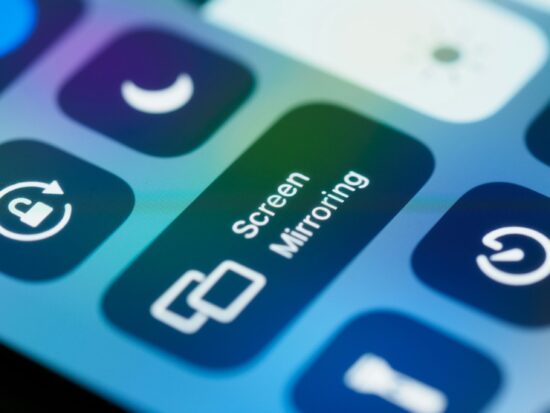
Once installed, launch the application to get started. You’ll notice an option for screen mirroring right away.
Next, ensure both devices are connected to the same Wi-Fi network. This step is crucial for smooth casting.
On your target device, open AirDroid Cast and look for a connection code or QR code displayed on-screen. You’ll need this in just a moment.
Return to your source device and enter the connection code manually or scan the QR code using the built-in scanner in AirDroid Cast.
After that, grant any necessary permissions requested by the app to allow full functionality like sound sharing and notifications.
Your devices should now be connected! Enjoy seamless screen sharing with ease as you navigate through apps and presentations effortlessly.
Benefits of using AirDroid Cast
AirDroid Cast offers a seamless way to share your screen across multiple devices. One of its standout benefits is the ability to mirror content wirelessly, eliminating messy cables and enhancing convenience.
This tool supports various platforms, making it versatile for users with different operating systems. Whether you’re using Android, iOS, Windows, or Mac, you’ll find AirDroid Cast compatible and easy to use.
Another advantage lies in its real-time screen sharing capabilities. This feature is perfect for presentations or gaming sessions. You can easily display high-quality visuals without noticeable lag.
Collaboration becomes effortless when everyone can see the same content simultaneously. This makes it an ideal choice for remote teams looking to brainstorm effectively or share ideas visually.
With additional features like remote control options, AirDroid Cast goes beyond simple mirroring. It empowers users to interact directly with their devices from another screen—an invaluable asset in today’s digital world.
Comparison with other screen mirroring options
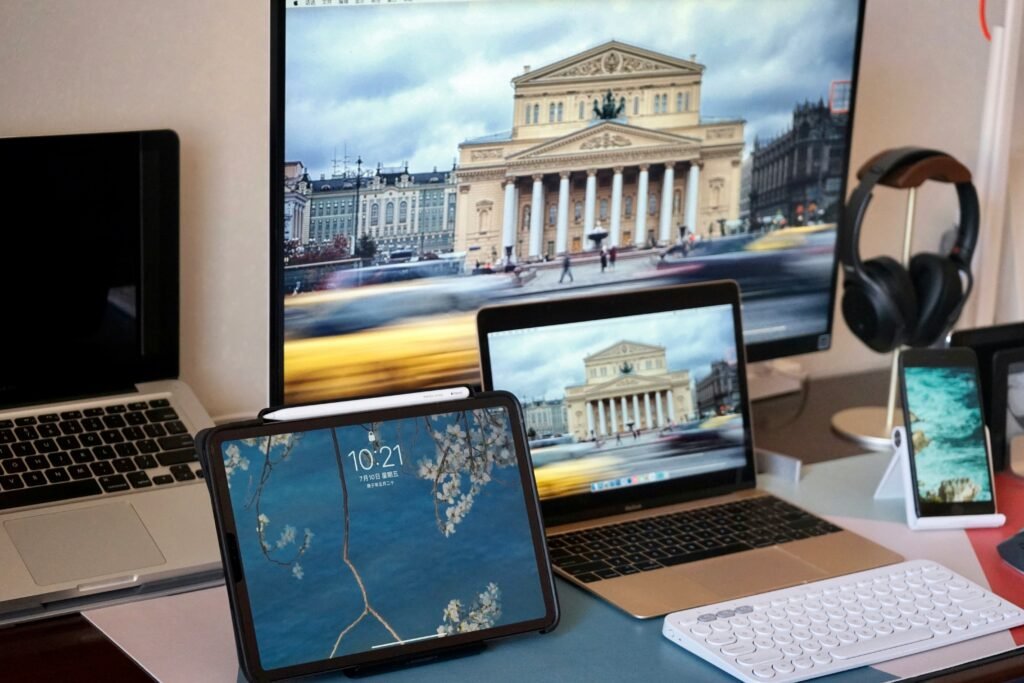
When comparing AirDroid Cast with other screen mirroring options, it’s important to note its versatility. Unlike some applications that are platform-specific, AirDroid Cast supports a wide range of devices, making it an attractive choice for users seeking flexibility.
Many alternatives require physical connections or specific software installations. AirDroid Cast streamlines the process with its wireless capabilities. This means you can mirror your screen without worrying about tangled cables or compatibility issues.
Another significant advantage is performance. While some apps may lag during transmission, AirDroid Cast offers smooth and responsive mirroring. It leverages efficient technology to minimize delays and maintain high-quality visuals.
You can also read about: IronFX Testimonials
User-friendliness also sets it apart from competitors. The setup process is straightforward, allowing both tech-savvy individuals and novices to get started quickly without extensive troubleshooting steps involved in many other solutions available today.
Tips for optimizing your AirDroid Cast experience
To enhance your AirDroid Cast experience, start by ensuring a stable Wi-Fi connection. A strong and reliable network can significantly reduce lag and improve streaming quality.
Next, close any unnecessary applications on both devices. This frees up resources for smoother performance during screen mirroring sessions.
Adjust the resolution settings within AirDroid Cast based on your device capabilities. Sometimes lowering the resolution can lead to better connectivity and responsiveness.
Consider using an external display with minimal latency features. Some screens are optimized for casting and will provide a superior viewing experience.
Keep your software updated. Regular updates can introduce new features and fix bugs that might disrupt functionality or performance.
Conclusion
AirDroid Cast stands out as a versatile tool for screen mirroring across various devices. Its user-friendly interface makes it accessible to everyone, from tech novices to seasoned experts.
With its robust features and seamless performance, AirDroid Cast elevates your sharing experience. Whether you’re presenting in a meeting or enjoying media with friends, this application proves invaluable.
As you explore the possibilities of wireless screen sharing, keep experimenting with settings and configurations. Each device interaction offers unique benefits that enhance usability.
Remember that troubleshooting is part of the journey; persistence leads to mastery. Embrace the learning curve and enjoy effortless connectivity at your fingertips.
FAQs
What is AirDroid Cast?
AirDroid Cast is a versatile screen mirroring application that allows users to share their device screens wirelessly. It works seamlessly across various platforms, making it suitable for both personal and professional use.
Is AirDroid Cast free to use?
Yes, AirDroid Cast offers a free version with basic features. However, there are premium plans available that unlock additional functionalities and enhance the overall experience.
Can I use AirDroid Cast on my smart TV?
Absolutely! AirDroid Cast supports casting to smart TVs as long as they have compatible interfaces or applications installed. This makes watching your favorite content from mobile devices easy and convenient.
How do I troubleshoot connection issues with AirDroid Cast?
If you encounter connection problems, ensure that both devices are on the same Wi-Fi network. Restarting your router or re-launching the app can also help resolve minor glitches.
Does AirDroid Cast support audio streaming along with video?
Yes, one of the standout features of AirDroid Cast is its ability to stream both audio and video simultaneously. This feature enhances presentations or media sharing sessions significantly.
Can I mirror multiple devices at once using AirDroid Cast?
Currently, AirDroid Cast allows mirroring from one device at a time per session. For multi-device setups, you may need separate instances of the app running for each additional device.
Is there any limitation in terms of screen resolution when using this service?
The quality of screen mirroring largely depends on your Wi-Fi speed and network stability; however, most users report excellent clarity without significant lag when conditions are optimal.
By addressing these common inquiries about how to use AirDroid cast effectively—setup tips included—you’ll find yourself better equipped for an enhanced wireless screen-sharing experience whether you’re presenting in meetings or simply enjoying media streaming at home.